How to slow down a video on iPhone
To learn a fast move from a video you need it slower than half speed, at a speed you choose, without making a new file every time you change your mind. Here is what the iPhone does by itself, and what MoveLens adds.
What the iPhone does by itself
Video you shot in Slo-mo plays slowly in Photos, and you can drag the bars under it to choose which part does. That only works for footage recorded that way. An ordinary video — a tutorial you saved, a clip a friend sent — plays in Photos at the speed it was filmed.
iMovie can slow any clip down to an eighth of its speed. It is an editor, though: you start a project, set the speed and export a new video, and you do all of it again for each speed you want to try.
In MoveLens
- Bring the video in from Files, from Photos, or by pasting it from the clipboard.
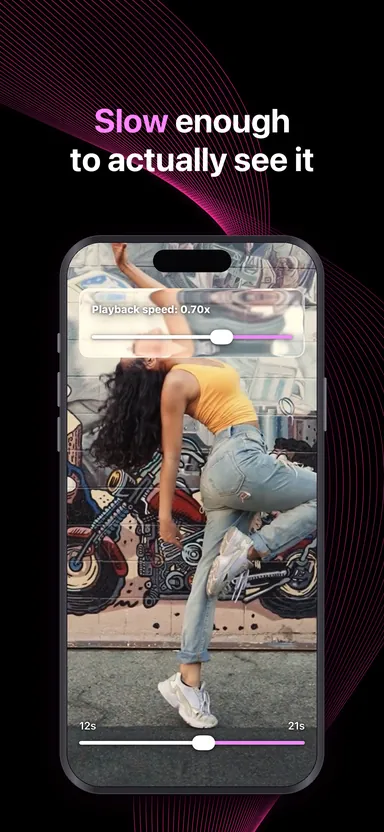
- Open it and drag the speed slider. It settles anywhere from full speed down to a tenth of it — 0.35×, 0.70×, whatever the passage needs.
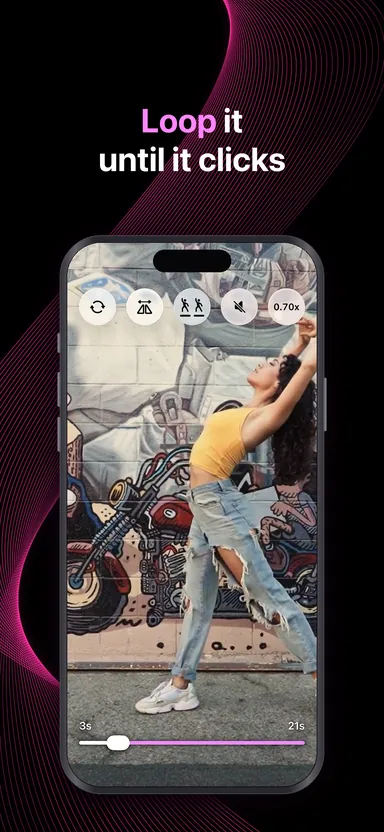
- Scrub to the count you are working on. The video loops on its own, so the phrase comes round again without you touching the screen.
The video is played slowly, not re-made, so a change of speed is instant and the file is never touched.
A way to practise with it
Start slow enough to see every change of weight, which is often somewhere between 0.3× and 0.5×. Once you can do the phrase along with the video, nudge the slider up a little and go again. Around 0.7× is a good place to find out what you have not really learned. Finish at full speed.
If the tutorial faces you, mirror it first, so that you are only solving one problem at a time. When you think you have it, film yourself and play the two side by side.
Not only dance
The same works for anything you learn by watching a body move: a golf swing, a kata, a climbing sequence, a skating jump, a physio exercise you were shown once and have to repeat at home.