How to compare two videos side by side on iPhone
Filming yourself and watching it next to the original is the quickest way to see a difference you cannot feel. Here is how to put two videos side by side on an iPhone.
The usual way: a video editor
The iPhone has no built-in way to play two videos next to each other. The common workaround is a split-screen or collage editor: add both clips, line them up, export, and watch the result.
It works, but the export fixes everything: which two videos, where each one starts, and one speed for both. Change your mind about any of it and you make the video again.
In MoveLens
- Bring both videos in — the original, and the one you filmed of yourself.
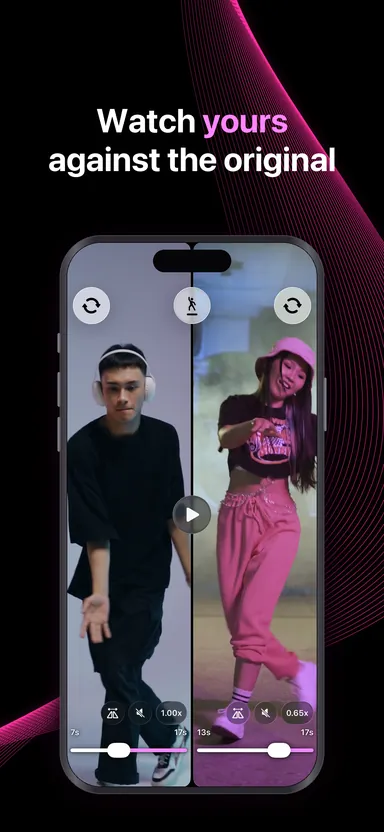
- Open the split view and put one on each side.
- Play them together, or give each side its own speed. Your run is rarely at the tempo theirs is, so slowing one of them is usually what makes the two line up.
- Swap either side for a different video without leaving the split: last week’s attempt, another take, a different teacher.
Nothing is exported. Both videos play from your library as they are.
Getting a comparison you can use
- Film yourself from the same angle and about the same distance as the original, with your whole body in the frame.
- Start both sides on the same count.
- Look at one thing at a time: feet first, then arms, then head. Watching everything at once mostly shows you that it looks different.
For coaches, and for everything else
The same split works for a student’s form next to yours, a golf swing next to a professional’s, or this week’s attempt next to last month’s.
Before you compare, it helps to have learned the phrase properly: mirror the tutorial so their left is your left, and slow it down until you can see every step.