How to scan a business card into iPhone Contacts
There are two ways to get a business card into Contacts without typing it out: the Camera’s Live Text, which is already on your iPhone, and a scanner app such as CardLens. Here is how each works, and when the second is worth having.
With the Camera, and nothing to install
- Open Camera and point it at the card.
- When the text is picked out, tap the Live Text button in the corner of the frame.
- Touch and hold the phone number or the email address, and choose Add to Contacts.
This is quick when you want one detail from one card. It does not look in your address book first: you are asked whether to create a new contact or add to an existing one, and finding the existing one is up to you. The rest of the card — the title, the address, the second number — you add by hand.
With CardLens
- Open CardLens and tap Scan with Camera. It finds the card’s edges and straightens it; if it gets them wrong, drag the corners before you keep the shot.
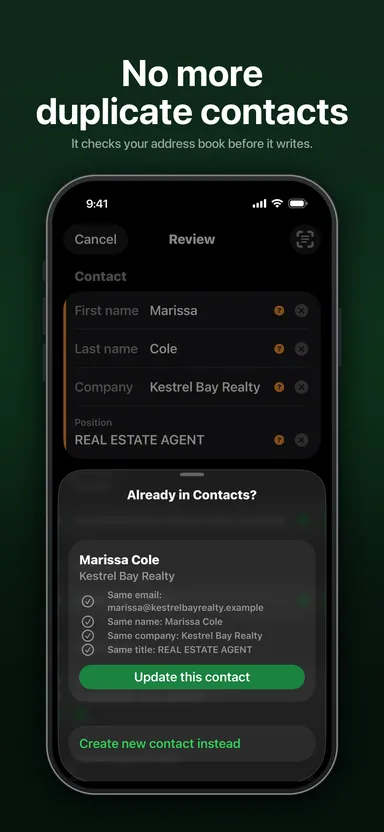
- Look over the fields: name, company, title, email, phone, address and website. Each one shows how confident CardLens is, so you know where to look.
- If the person is already in your Contacts, CardLens tells you before it writes anything, and shows field by field what updating them would change. New details are ticked; anything that would overwrite what you already have starts switched off.
- Save. The contact goes into Contacts, and nothing about the card stays behind.
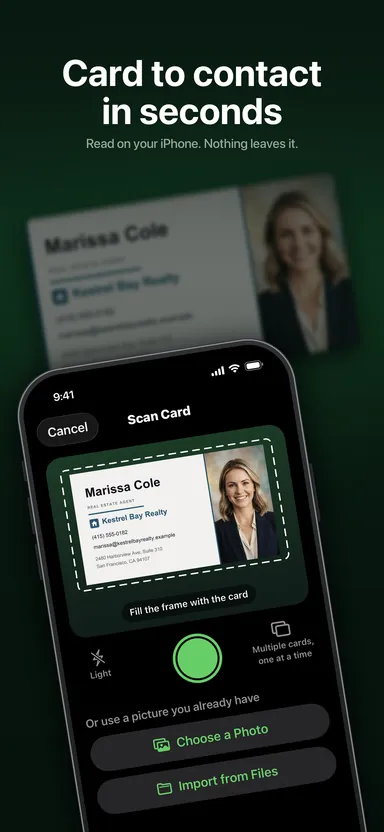
A stack from a conference
Photograph several cards in one go and each becomes its own contact, reviewed and saved one at a time. That is the difference between doing it on the train home and never doing it.
A card that is already a picture
A card someone emailed you, or a screenshot of an email signature, comes in from your photo library with Choose a Photo. One saved out of Mail, iCloud Drive or a scanner app comes in with Import from Files, and you can pick several files at once.
Fixing a field that came out wrong
Anything CardLens could not place waits in a tray at the bottom of the review screen. Tap a line to file it under the right field, or press and hold to split a line holding two facts. To see whether the card was misread or a line was only filed under the wrong label, tap Recognized Text: the card comes back with every line numbered and drawn over it.
What stays on your iPhone
All of the reading happens on the iPhone. Card images, and the details printed on them, never leave it, and there is no account to create. The privacy policy has the whole of it.
What it costs
Your first 10 saved contacts are free. After that, one purchase unlocks unlimited scanning for good — no subscription. CardLens runs on iPhone with iOS 26 or later.