CardLens
Business cards into Contacts in seconds. Everything is read on your iPhone and checked against your address book, so you get an updated contact, not a duplicate.
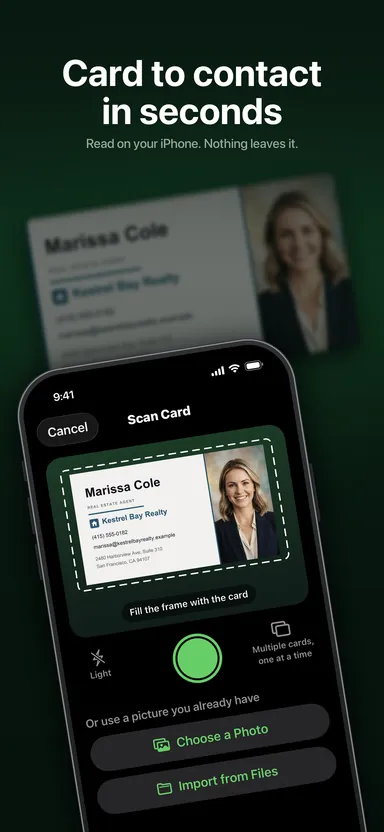
Point your iPhone at a business card and the contact fills itself in — name, company, title, email, phone, address and website — ready to save in seconds. All the reading happens on your iPhone. Card images, and the details printed on them, never leave it. No account to create, no ads.
No more duplicate contacts
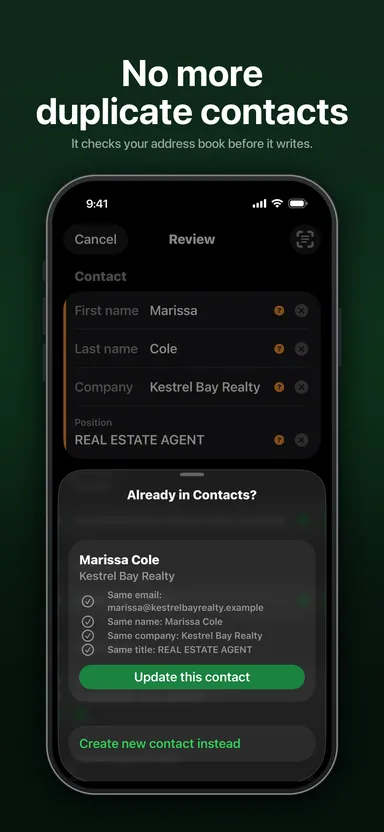
Most scanners add a new entry every time. CardLens looks first. If you already have the person, it tells you before it writes anything — and shows you, field by field, what updating them would change.
New details are ticked and ready to add. Anything that would overwrite a value you already have starts switched off, shows both versions side by side, and says what accepting it costs. You make the call; CardLens writes only what you agreed to.
Decline the contacts permission and CardLens hands the finished card to the Contacts app’s own save sheet instead: no duplicate check, but the card still gets in.
Scan a whole stack
Photograph several cards in one go and each becomes its own contact, reviewed and saved one at a time. Ideal for the pile that comes home from a conference.
If a card carries a QR code with contact details, CardLens reads them straight off — no guessing.
Details that arrive intact
Three numbers come in labelled mobile, work and fax, not as three identical entries, and each is saved exactly as the card prints it, extension and all.
A link to LinkedIn, Instagram, X, Facebook, TikTok or YouTube is filed as a social profile, not dumped in with the websites. A card carrying a company and no person is saved as an organization, not as a nameless record.
Every field is yours
Email, phone, address and website are read straight off the card. Name, company and title are worked out on-device by Apple Intelligence, and every value is checked against the text printed on the card before it is accepted. On a device without Apple Intelligence, the tray below is how you label those three.
Each field shows how confident CardLens is, so you know where to look. Anything left over waits in a tray at the bottom — tap a line to file it under the right field, or press and hold to split a line holding two facts, or join one that wrapped. Clearing a field puts its text back in the tray rather than throwing it away.
See what it saw
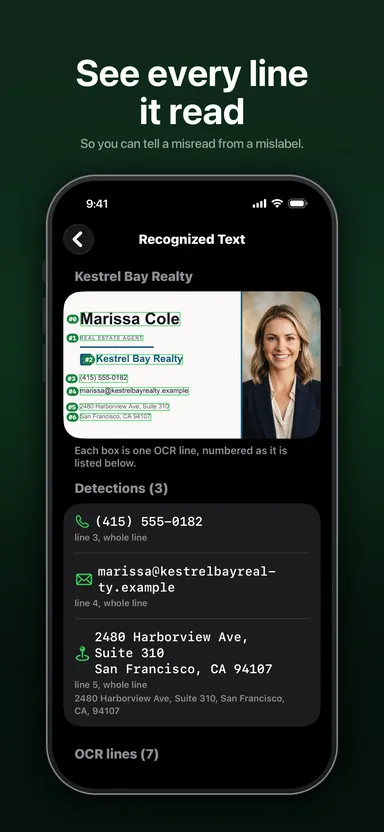
Tap Recognized Text and the card comes back with every line CardLens read drawn over it, numbered, beside what each line became — so when a value looks wrong, you can tell whether the card was misread or the line was filed under the wrong label.
Three ways in
Scanning finds the card’s edges and straightens it — and when it gets them wrong, you drag the corners before keeping the shot.
A card someone emailed you, or a screenshot of a signature, comes in from your photo library.
One saved out of Mail, iCloud Drive or a scanner app comes in from Files, with no trip through Photos.
A contact photo, not a photo of paper
If the card carries a headshot, CardLens can crop to just the face and use that as the contact photo, so the entry looks like the person, not a scanned rectangle. Optional, and off by default — a photo of somebody’s card is more than the details printed on it.
Built properly
Cards in other languages are read properly, including Japanese and Chinese company forms and name order — and CardLens itself speaks English, Chinese, Japanese, Spanish and French.
VoiceOver reads every field with its confidence attached, confidence is never signalled by colour alone, and the layout holds at the largest text sizes.
CardLens keeps no library of its own: the contact goes into Contacts, nothing about the card stays behind, and one tap opens the new contact there.
Free to try
Your first 10 saved contacts are free. After that, one purchase unlocks unlimited scanning for good — no subscription, no sign-up.
CardLens collects anonymous usage statistics and crash reports so problems get found and fixed; you can turn that off in Settings. Neither ever includes card images, contact details, or anything read off a card.
Guides
The details
iPhone, iOS 26 or later. Available in English, Chinese, Japanese, Spanish and French.